
Searching Cases by Name
Start with the official North Carolina eCourts Portal. That is the ordinary public route for a Lee County case search. Its Smart Search view costs nothing and needs no registration. Creating an account lets you save a matter in My Cases. It does not unlock confidential or restricted material for a general user. Type the last name first. Then type the first name, in the order the training material describes. Open the returned record number to reach the Case Summary or Register of Actions.
- Open the eCourts Portal and select Smart Search. Enter a last name first, using at least three last-name characters and one first-name character when searching by name.
- Submit the basic name search, then review the returned records carefully. A name is a search starting point, not a match by itself.
- Use the optional Location control to select Lee County and apply other available filters only after a name or record-number search has begun.
- Open the linked record number for the likely case and read the Case Summary, including events, hearing information, and status where those blocks are available.
Remember what the Portal is. It gives public access, not the official court record. When you need the exact terms of an order or a certified document, contact the Lee County Clerk of Superior Court.
| Smart Search field | Type | Required | Lee County use |
|---|---|---|---|
| Name | Text | One of Name or Record Number | Enter last name first; the training guidance gives the minimum character approach for a name search. |
| Record Number | Text | One of Name or Record Number | Use the actual number from a court record or returned result. |
| Search Type | Dropdown | Shown in advanced flow | Guide options include case number, business name, citation number, party name, and attorney name. |
| Location | Dropdown | Optional | Select Lee County to narrow a statewide result set. |
| Advanced Filtering | Control | Optional | It cannot stand alone, so begin with a primary search value. |
Lee County Smart Search Location
The Portal covers all of North Carolina. That reach makes the Location filter critical. One name can pull records from several counties at once. After starting Smart Search with a record number or name, choose Lee County. That step focuses the results on the local Superior Court and District Court framework. The court posts no separate Lee-branded public civil or criminal case-search database. So the county narrowing step is the supported path from the statewide screen to Lee records. Case type and status can refine a broad result. Treat them as secondary filters, since options differ by location. A public date of birth, when shown, masks the month and day. Those details help you search. Then confirm the public case identity before you rely on it. The Judicial Branch Portal training and resources page lays out the official statewide public search path.
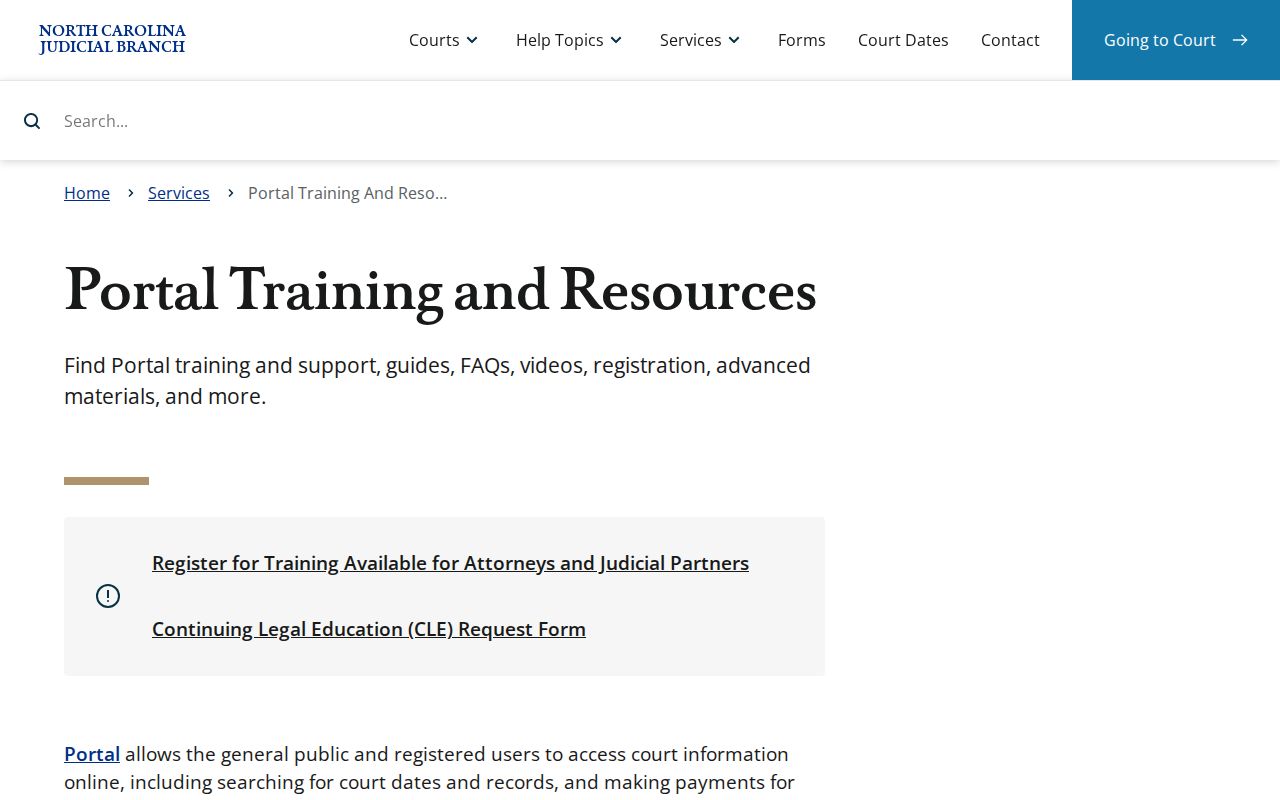
The training material sorts out the difference between a public Smart Search, a saved-case account, and an authorized-access workflow.
Searching by Case Number
A record number beats a name for precision. State training breaks its structure into four parts. Those are a year, case-type letters, a six-digit sequence, and a three-digit county identifier. In form, that reads as year · case-type letters · six-digit sequence · county identifier. Treat that as a generalized pattern, not a model to construct or guess. Lee's county code is 520 in the Judicial Branch list. It is not a shortcut. Never append it to an invented string. Copy a number exactly. Take it as it appears on a citation, notice, Clerk material, or Portal result. The guide permits a wildcard after four characters plus an asterisk, not a manufactured number. When a result opens, confirm the court location first. The statewide system can return similar identifiers. Processing or access limits may also affect the public Case Summary.
Lee County 200-Result Case Search
A broad name search can hit the Portal guide's 200-result cap. Hitting that cap does not mean your Lee County record is missing. It is a signal to narrow, not to keep scanning a long list. Enter the name, select Lee County, then apply case-type or status filters to refine. Advanced Filtering cannot stand alone. It follows a name or record-number entry rather than replacing one. No useful result? Check spelling and record-number format first. Then ask three things. Was the matter converted into the Odyssey/eCourts system? Does it exist under your chosen terms? Does law restrict public access? Portal data are described as near real time. Still, new information appears only after upload and processing. A missing online result never proves the Clerk lacks the file. For a stubborn public file question, ask the Lee Clerk about its public terminal, paper-file route, or official-copy procedure. The statewide Administrative Office form is not for an individual Lee case document.
What a Case Search Returns
Clicking a result opens the Case Summary, also called the Register of Actions. Think of it as the public-facing event history of a case. It is not a narrative account, and it is not automatically the signed court document. The official materials describe several blocks that may appear. Availability depends on the record type, processing, and access rules. So read any result as a conditional public view. It is not a promise that every case carries the same set of details.
| Case identity | May show the record number, Lee court location, case type, status, assignment, and core identifying information. |
|---|---|
| Parties | May show public party names and roles; a public date of birth is masked to the year when displayed. |
| Events / Register | Chronological public entries for filings, notices, orders, settings, or other court actions. |
| Hearings | Hearing information where applicable. Use Search Hearings for a separate targeted setting lookup and confirm time-sensitive dates. |
| Financial and disposition | May appear where applicable. A displayed balance does not prove payment eligibility, and a status is not a substitute for an official order. |
| Documents | Some public material may appear after processing; restricted documents or entire cases can be unavailable. |
Read a future hearing on its own. It is separate from the final disposition or status. A scheduled date does not show how the case ended.
Lee County Case Search Summary Terms
A Lee County case search throws labels at you that are worth decoding. The Case Summary is the case-level display. The Register of Actions sits inside that view. It lists public events in the order they happened. A status tells you where things stand procedurally, not necessarily how they ended. Read the identity block first, then the dated events, then any future hearing and the disposition. That order keeps the categories clear instead of blurring them together.
- Case Summary
- The Portal’s case-level view, which can include identity, parties, events, hearings, disposition, and conditional detail blocks.
- Register of Actions
- The chronological event list for the case. It is not automatically the official signed document.
- Pending
- A guide-listed status showing that a matter remains open in some procedural sense. It does not explain every next step.
- Stayed
- A guide-listed status indicating that action is paused by authority or order, not necessarily ended.
- Trial De Novo
- A listed status relevant to eligible District Court appeals to Superior Court, where a new proceeding is tried anew.
Other statuses on the guide list include Reopened and Transfer. When the exact legal effect of a status matters, get the signed order it references or ask the Lee Clerk for the official record rather than reading a short label as a final conclusion.
Statewide vs Lee County Case Search
Lee County offers no separate county-branded public case-search portal. The statewide eCourts Portal is the online search layer, and its Location filter narrows results to Lee. Need something beyond the screen? The Lee Clerk and its public terminal cover public-file research, paper records where they apply, copies, certification, and help when the online answer falls short. These routes work together. One is not a rival database to the other.
| Statewide Portal with Lee filter | County-based Lee Clerk route |
|---|---|
| Public Smart Search by name or record number, then narrow the statewide results to Lee County. | Public terminal, clerk assistance, and records access within the unified Lee Superior and District Court framework. |
| Useful for Case Summary, Register of Actions, Search Hearings, and eligible online functions. | Useful for an official copy, certification, a paper-file question, or a public record not resolved in a browser. |
| Free ordinary public access, subject to processing and restrictions; it is not the official record. | The Clerk holds the official file, subject to applicable access law and court procedures. |
Found the record but still need the court date? Use the separate hearing-search route and the current calendar rather than trusting a name-search result to confirm a setting.
Lee County File and Serve Search
eCourts File & Serve and Portal Smart Search both came through the Odyssey conversion, but they do different jobs. File & Serve handles authorized electronic filing. Smart Search is the public case-search route. During Lee's 2023 pilot, attorneys had to use File & Serve for new and later filings. That mandate never turned it into a lookup tool. The official eCourts File & Serve entry point is a filing destination, while the Portal remains the public case-search destination.
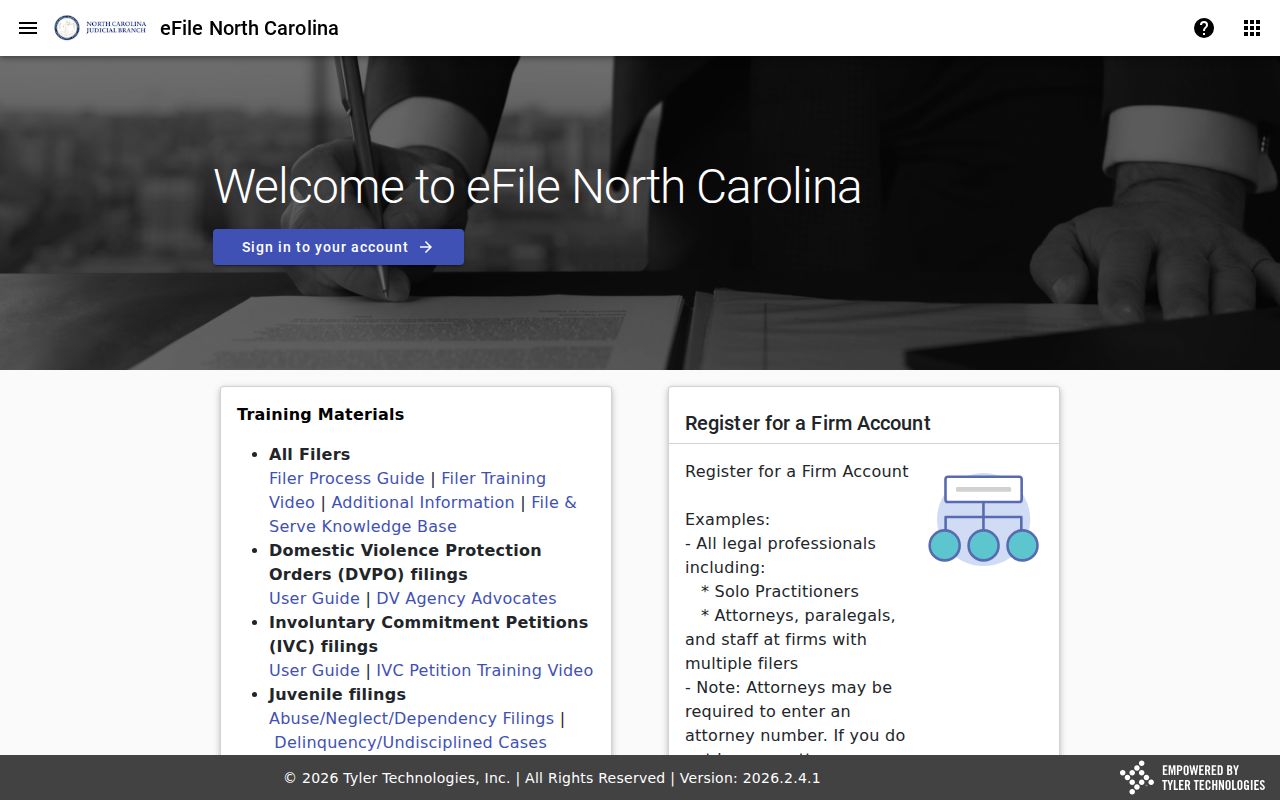
Knowing the two systems apart prevents a common Lee County search error: treating a filing service as if it were the public docket view.
Access and Restricted Cases
Public search access has limits. The Portal FAQ states that general users cannot reach confidential or restricted information. Its examples include juvenile cases, protective orders, and unreturned criminal warrants, which require elevated access or stay unavailable to general users. Sealed or expunged material never appears in the public Portal. So an empty result does not prove that a person or case never existed, and it is not an invitation to hunt for a workaround.
North Carolina law separately limits public inspection of juvenile records under G.S. 7B-3000 and keeps abuse, neglect, and dependency court records confidential under G.S. 7B-2901. A free Portal account grants no elevated access. Check your search terms and format. Consider whether access is restricted. Then contact the Lee Clerk to ask what lawful process applies.
Lee County eCourts Case Search
Lee was among the initial eCourts pilot counties. It went live on February 13, 2023. The official pilot announcement says the Enterprise Justice/Odyssey environment replaced more than 40 legacy applications. It also tied together Portal case access, hearing dates, payments, and File & Serve. Statewide conversion reached all 100 North Carolina counties on October 13, 2025.
The official FAQ calls Portal information near real time. It is not the official court record. Uploads can require processing, and restricted material stays outside the public view. Older or missing files raise other questions. Go back to the Lee Clerk, the public terminal, or the applicable paper-file process.
The official eCourts pilot announcement documents Lee's early role in the conversion.